
At a Glance
tlansclaib is a free desktop app for Mac and Windows. It turns a recording into a text file on your own computer, and nothing gets uploaded.
It plays the recording along with the text, knows who said what on a call with two tracks, and brings dedicated models for Thai and Swiss German.
A friend came over and asked me to “tlansclaib” a company meeting in Thai. Transcribe, that is. The word stuck. It became the name of the app. I had a script for the job, but nobody else could run it. So I turned it into an app anyone can install, for Mac and Windows.
This is what it does, and how that looks in practice.
From recording to text
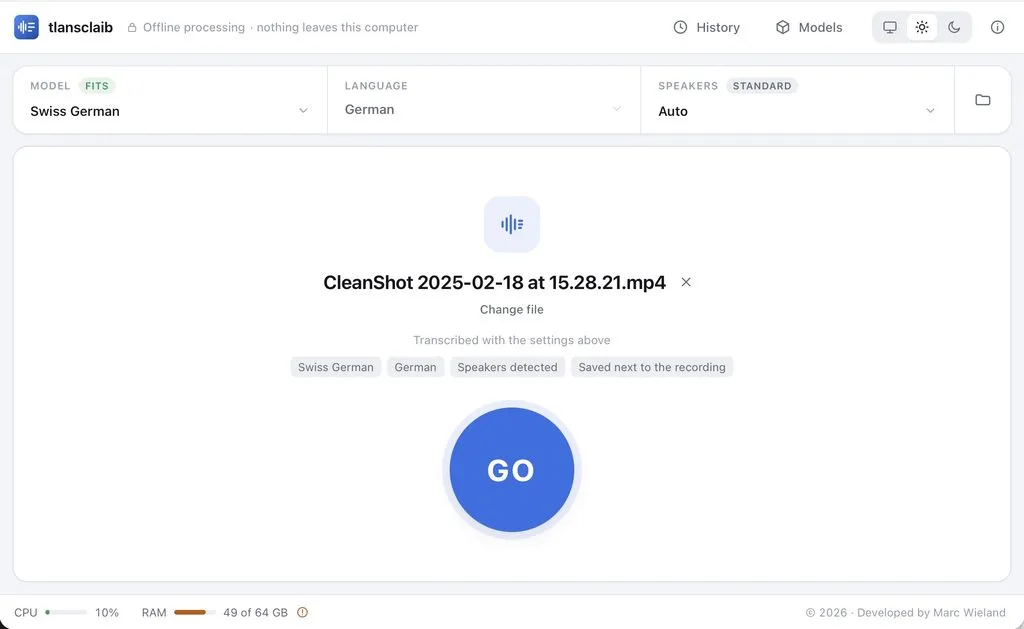
Drop a recording on the window. m4a, mp3, wav, mp4 and most other audio and video files work. Nothing starts yet. The app first shows the recording with the settings it is about to use: model, language, speakers. One look, then GO. That catches a wrong language before an hour of work.
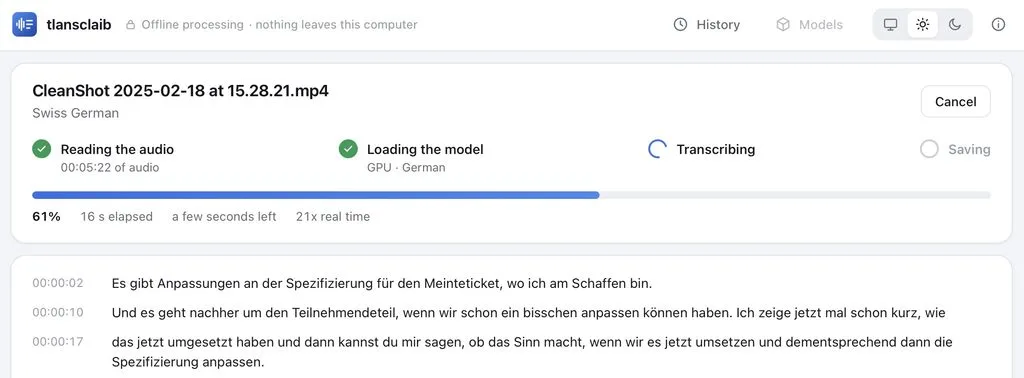
Then the steps run. A bar shows how far it is and how long it still takes. The lines appear while you watch. On my Mac, a 107-minute meeting in Thai took 5 minutes. That’s about 20 times faster than the recording plays. The transcript lands as a text file next to the recording, with the time in front of every line.
Privacy is important
Why not use a transcription service? Upload the file, get the text back. For a company meeting, that’s exactly the problem. The recording leaves the building. So does everything people said in that room.
tlansclaib does everything on the computer it runs on. Once a model is there, the app works offline. Recordings and transcripts never leave the computer. No account, no tracking, nothing to pay. This is very important for business meetings.
The recording never leaves your computer.
It looks after the computer itself too. Before a run, it checks that the model fits into the free memory. If memory runs low during a run, it stops instead of freezing the laptop. Everything else stays usable while it works.
Read along with the recording
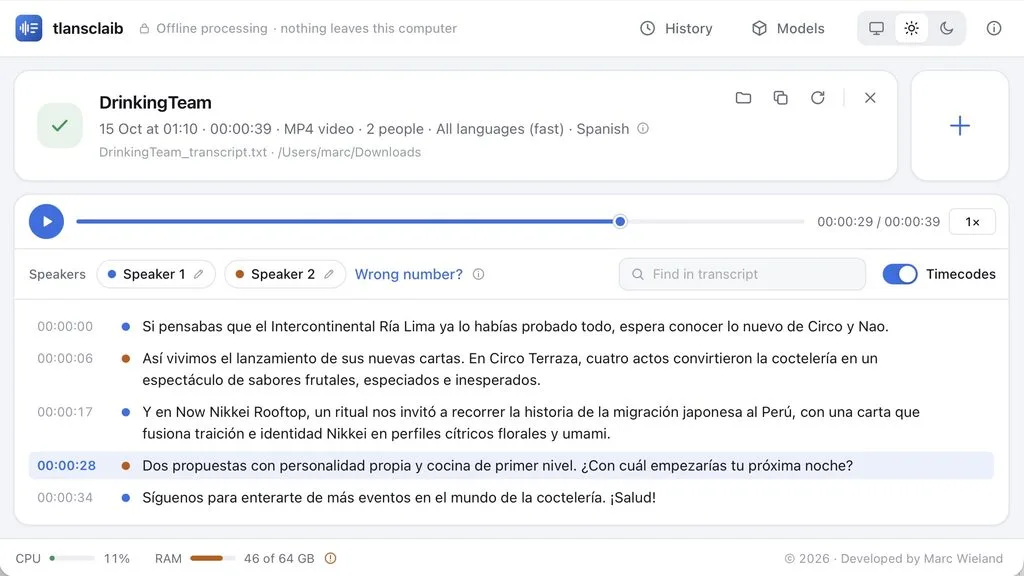
A transcript you can’t check is only half done. So the recording plays right above the text. The line you hear is highlighted. Click any line and it plays from there, at normal speed, 1.5× or 2×. ⌘F or Ctrl+F finds a word.
Click any line and you hear exactly what was said.
Found a mistake? Double-click the line, fix it, press Enter. The file is saved at once. “Undo” stays for a few seconds. The timecodes go on and off with one switch. And if someone changed the file in another program in the meantime, the app leaves it alone and tells you.
Calls on two tracks
This is where the app shines. Many screen and call recorders, CleanShot for example, keep your microphone on one track. The computer’s sound, with everyone else on the call, goes on another. tlansclaib reads both. The track tells it who is speaking. No guessing.
That makes it the fastest and the most accurate way to a transcript with names. There’s no detection step. That alone saves 2 to 4 minutes on a 25-minute call. Every line goes to the right person, even a quick “yes” in between. When both talk at once, both lines show up, and the player highlights both. One of my calls came back with 182 lines. Every single one with its speaker.
Two tracks mean no guessing. Every line goes to the right person.
Then name them. Click “Speaker 1” and type “Marc”, click “Speaker 2” and type “Client”. The file follows at once:
[00:04:12.20 --> 00:04:18.60] Client: Can we move the launch to March?
[00:04:19.10 --> 00:04:19.90] Marc: Yes.
[00:04:20.40 --> 00:04:31.00] Marc: March works, if the texts are ready by the end of February.
Each speaker gets a colour. Every line gets a dot.
A meeting room
A meeting room has one microphone, so one track. For that there’s speaker detection, an optional download of 38 MB that runs offline as well. Pick “Auto” or the number of people. Giving the number works better.
It’s good on longer turns. In meetings where people switch turns often, or when multiple people talk at once, things can get messy. For example, a quick “yes” from someone is hard for the detection model.
Thai, Swiss German and about 100 more
Whisper’s general models cover about 100 languages at once. For Thai and Swiss German, dedicated models do better, and the app offers them with one click. The Thai ones come from Mahidol University and SCB 10X. The Swiss German one writes what it hears as Standard German. So something like “Mir gönd morn uf Bärn” comes out as “Wir gehen morgen nach Bern”. German, English and French have their own models too.
The model list recommends what suits your computer. It shows how big each model is, how much RAM it needs and how long the download takes. Green means it fits.
Hard audio stays hard, though. A meeting recorded from the far end of a long table comes out rougher than a call. In any language. But overall, the results aren’t bad, even when the quality isn’t good, for example, from a recording out of the pocket. It’s meant to turn voice into text and can be improved later for a finalised version, or used to get notes into text.
The history
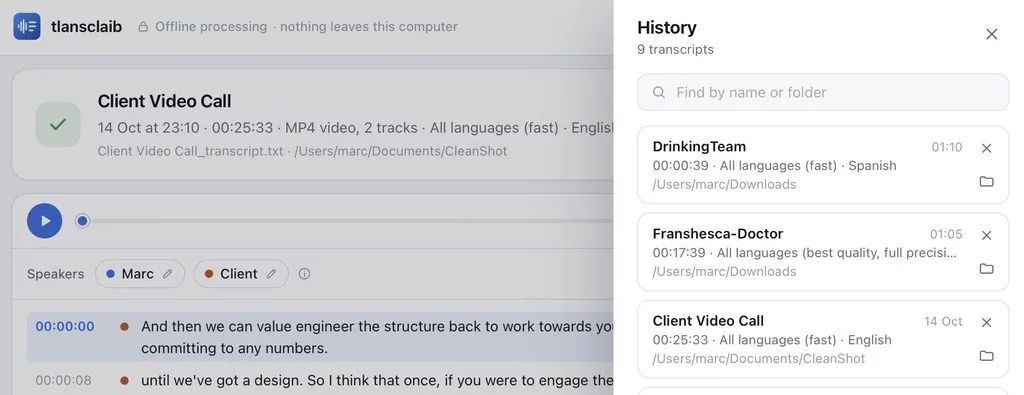
Every transcript lands in the history. Date, length, folder. A search sits on top. Open one and it plays along like a new one. Moved the file? “Locate…” finds it again. Want another model, or more people? “Transcribe again” runs it with other settings.
Try it
- tlansclaib for Mac, macOS 13 or newer, Apple silicon and Intel
- tlansclaib for Windows, Windows 10 or 11
On the first start, open Models and download one for your language. It’s free, without ads or a subscription. The code is on GitHub. If it saves you time, you can support my work.
Conclusion
A transcript is only worth something when you can check it. Hearing any line with one click and knowing who said it matter more than the transcription itself.
And if you record calls, record them on two tracks. It’s the fastest way to a transcript with names, and the most accurate one.